
Introduction
Google Chrome has an experimental Vertical Tabs feature that displays tabs in a left sidebar instead of the top bar. Microsoft Edge has offered this as a standard feature for some time, and Chrome now allows you to enable it via chrome://flags.
For anyone who keeps many tabs open or uses a widescreen monitor, vertical tabs can significantly improve productivity. This article explains how to enable and use them.
What Are Vertical Tabs?
In standard Chrome, tabs are arranged horizontally at the top of the window. As you open more tabs, each one gets narrower and the title becomes unreadable. With 20 or more tabs open, you can barely see anything beyond the favicon.
Enabling vertical tabs solves this problem:
- Tabs are arranged vertically in a left sidebar, so titles remain visible even with many tabs open
- Tab titles are always displayed as text, making it easy to find the tab you need
- The top tab bar is removed, increasing vertical screen space for content
- The sidebar can be collapsed and expanded as needed
Requirements
- Supported OS: Mac, Windows, Linux, ChromeOS
- Chrome version: Latest version recommended (as an experimental flag, it may not exist in some versions)
Setup Steps
Step 1: Open the Flags Page
Type the following in Chrome’s address bar and press Enter:
chrome://flags/#vertical-tabs
The “Vertical Tabs” entry will appear highlighted in yellow.
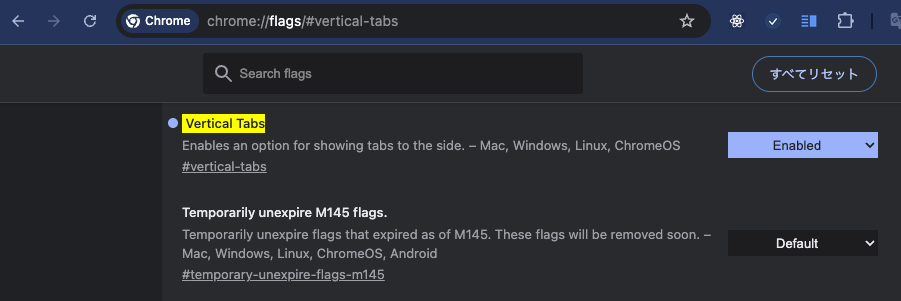
As shown in the screenshot above, “Vertical Tabs” is highlighted and you can change the setting from the dropdown on the right.
Step 2: Change to “Enabled”
Click the dropdown next to “Vertical Tabs” and select “Enabled” (the default is “Default”).
The flag description reads:
Enables an option for showing tabs to the side. – Mac, Windows, Linux, ChromeOS
Step 3: Restart Chrome
After the change, a blue “Relaunch” button appears at the bottom of the page. Click it to restart Chrome and activate vertical tabs.
Using Vertical Tabs
After restarting, tabs will appear vertically in the left sidebar.
Toggling the Sidebar
- Click the sidebar toggle icon at the top-left of the window to show or hide the sidebar
- Alternatively, right-click on the tab bar and select “Show tabs in side panel”
Collapsing the Sidebar
When the sidebar is in the way, click the arrow button on the left edge to collapse it (icon-only view). Click again to expand.
Reverting to Normal Tabs
To disable vertical tabs, open chrome://flags/#vertical-tabs again, set the dropdown back to “Default”, and restart Chrome. This restores the standard horizontal tab bar.
Differences from Edge’s Vertical Tabs
Microsoft Edge’s vertical tabs are a polished standard feature with tab group nesting and auto-collapse support. Chrome’s vertical tabs are experimental, so there are some differences:
| Feature | Chrome | Edge |
|---|---|---|
| Availability | Experimental flag | Standard feature |
| Tab Groups | Basic support | Nested display |
| Auto-collapse | No | Yes |
| Stability | May change with updates | Stable |
That said, Chrome’s vertical tabs are perfectly usable for daily browsing.
Summary
Chrome’s vertical tabs can be enabled in under a minute via chrome://flags/#vertical-tabs. For anyone who keeps many tabs open or wants the same experience as Edge’s vertical tabs in Chrome, it is a feature worth trying.
Since it is an experimental flag, it may be disabled by a Chrome update. If that happens, simply follow the same steps to re-enable it.